
Contents
- What is CRM Import?
- What is the ‘Company Owner’?
- How to set it up
- How to use your CRM data in Beauhurst
- In Advanced Search
- In Collections
- See it on the platform
- Get in touch with the team
What is CRM Import?
With the HubSpot and Salesforce integrations, you can now bring key CRM data directly into Beauhurst.
This allows you to:
- Use your data to power more relevant Advanced Searches
- Create live collections based on your activity
- Quickly see your data within Beauhurst data to understand your relationship with companies
- No longer need to keep switching between tools
How to set it up:
- Go to the Integrations Settings page
- Connect your HubSpot or Salesforce CRM
- For more support on how to connect your CRM see our guides here
If you have already connected your HubSpot you will need to re-authenticate the integration to ensure we have the correct permissions for this feature.
This will need to be done by the CRM admin and will not affect your integration.
3. In the Integrations settings:
- Navigate to the Import settings
- Search for the data you want to import
- Select up to 5 CRM fields and save your selection
- The import can take up to 15 minutes to complete
4. Or from a company page go straight to the import settings and add the fields you want to use
How to use your CRM data in Beauhurst
In Advanced Search
Use your data to create bespoke searches based on your data. This could be finding new opportunities in your ICP, filtering out any clients or active prospects, identifying the breakdown of your clients or using your classification data.
- Go to Advanced Search and add a company criteria
- Select either HubSpot or Salesforce
- Select the data you want to filter by
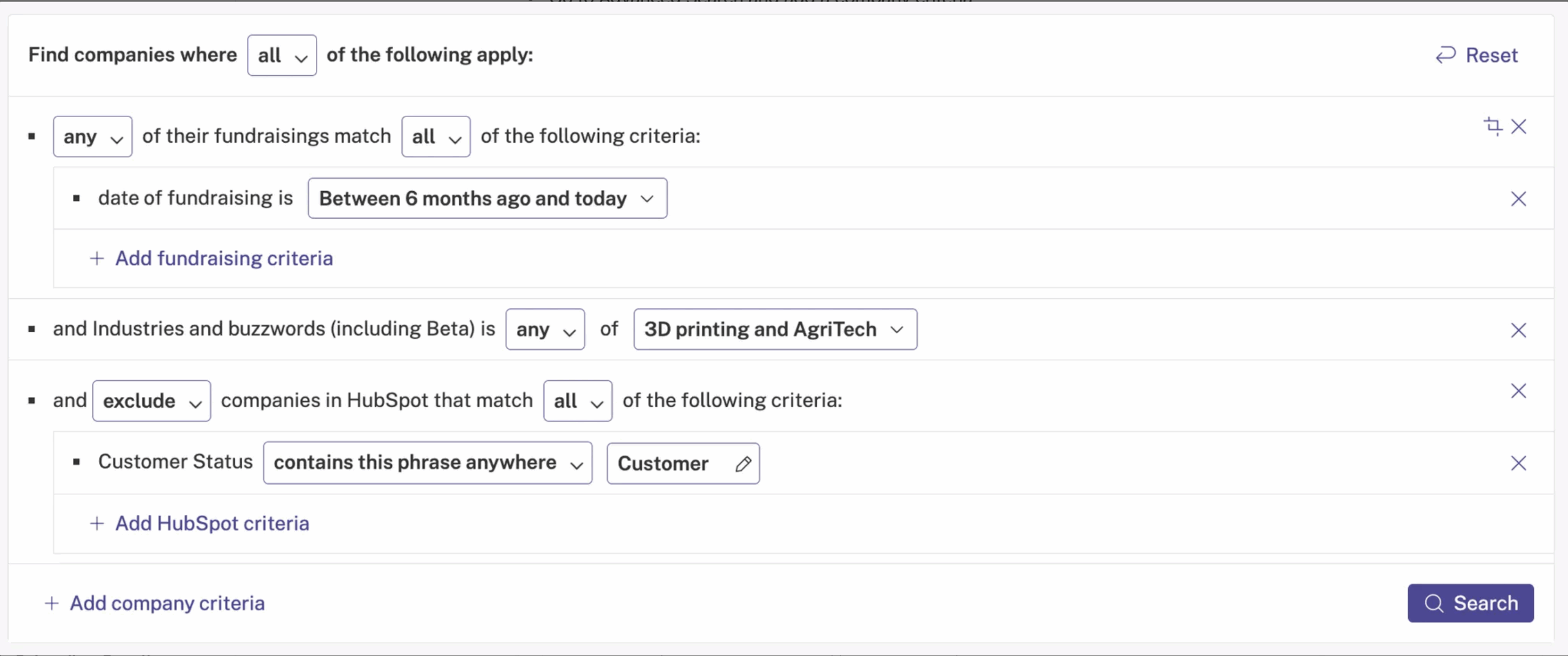
- Exclude results based on your CRM data to find new opportunities
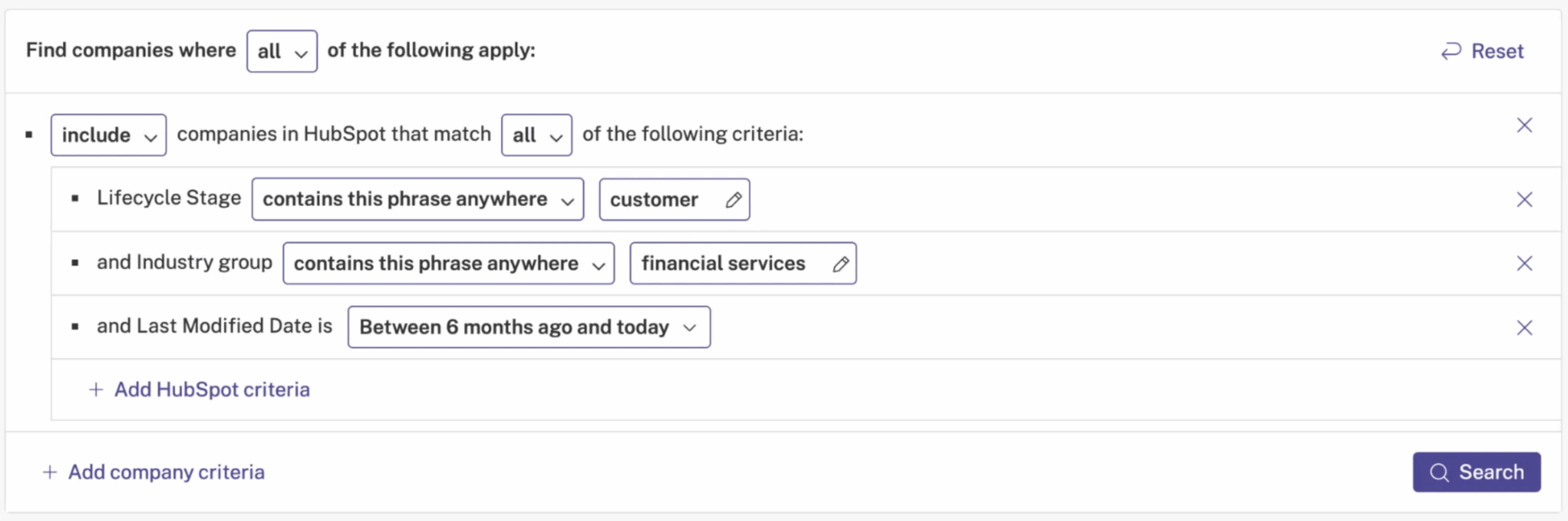
- Include results based on your CRM data to automate list creation
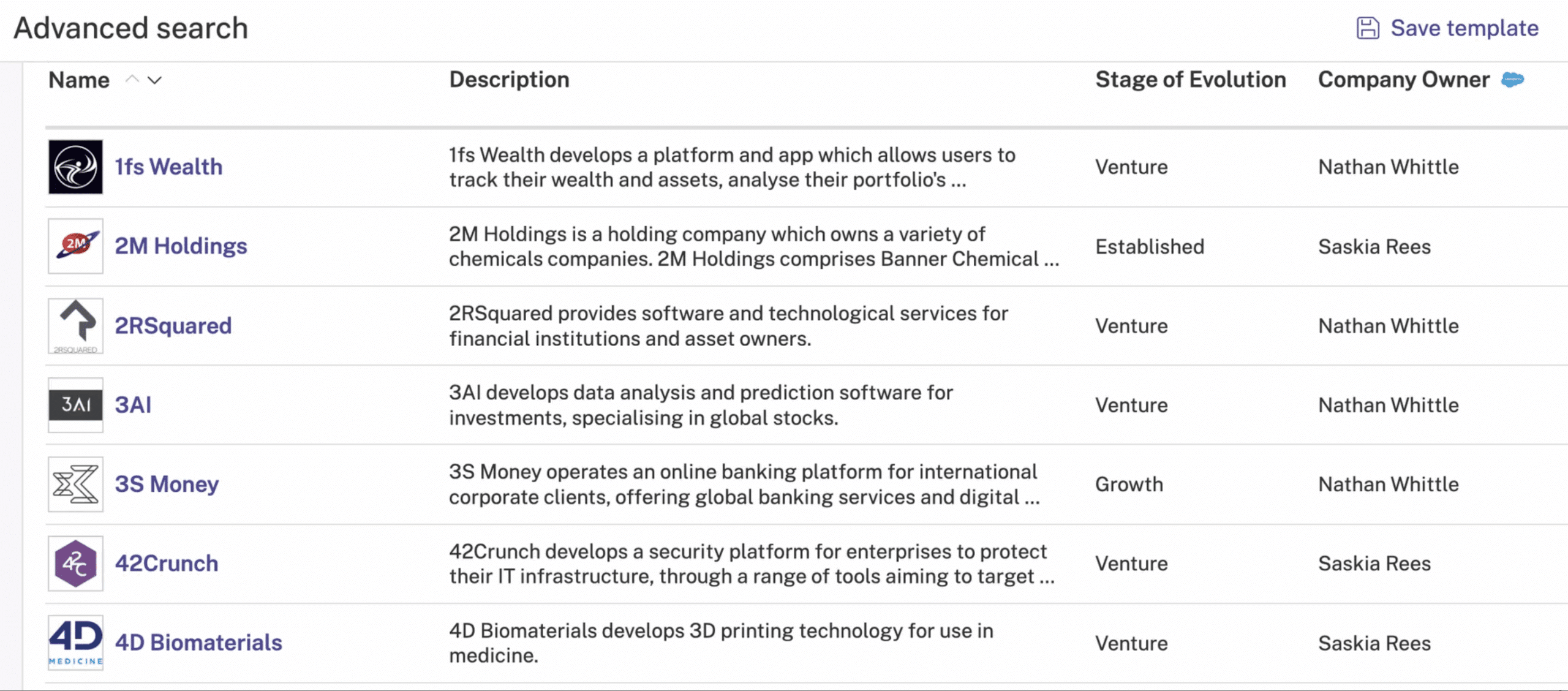
- See your CRM data in the results by showing them in the results columns
- Click ‘Edit table columns’ to find the fields you want to see
In Collections
Create Collections that are updated based on your CRM activity, such as live client and prospect lists. This keeps these lists up to date automatically and ensures you are notified of any interesting activity.
- Go to Advanced Search and create a search using your CRM data
- Save the results to a collection
- Choose the activity alerts you want, such as any new fundraisings, key people changes or news mentions
- Enable the auto-add and auto-remove settings you want to keep the collection updated
- Save the collection, and it will stay updated and alert you to interesting activity automatically
- See your CRM data in the results by showing them in the results columns
- Click ‘Edit table columns’ to find the fields you want to see
See it on the platform
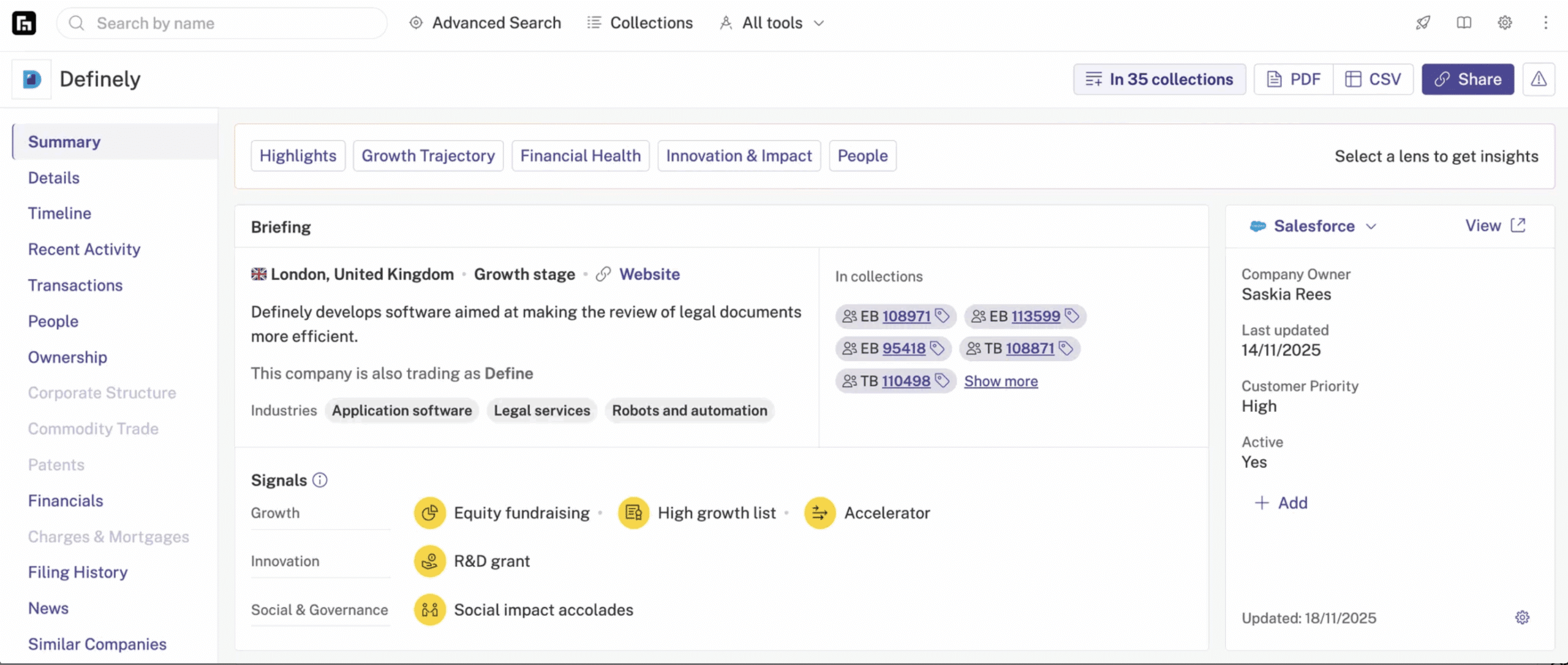
On any company that we have been able to match to a record in your CRM, we will display your imported fields on the company page so you can quickly see your insights without needing to switch tools
There is a link taking you directly to the record in your CRM if you do want to see more details.
Get in touch with the team
For any more information on how to run similar searches yourself or if you have any questions, please speak to your Support team – their contact details will be found in the Help tab on your account.